TCB-Arrow Ltd

TCB-Arrow is a leading injection moulding (LSR & Thermoplastic) manufacturer providing components and assembly solutions. Developing long-term partnerships with customers, where ideas take shape from concept through to high volume manufacture.
You can reach TCB-Arrow Ltd, via phone at 01276 679394 or by sending an email to enquiries@tcb-arrow.co.uk our office location Watchmoor House, Watchmoor Rd, Camberley GU15 3AQ

Social Links:
Facebook
Twitter
Linkedin

Zealous System

Zealous System is a comprehensive IT solutions provider that delivers IT consulting, development and maintenance services to our elite clientele.

Whether you opt for standard mobile app development or web development services or wish to gain cognitive intelligence with IoT, Blockchain, AI or other such cognitive technologies, we provide you access to best talent pools that you can hire with flexible hiring contracts along with complete transparency and work flexibility.

Hire dedicated mobile app developers

Hire android app developer

Hire dedicated iphone app developers

Hire Flutter App Developers

Hire React Native developers


Branex

Branex is a full-service digital product development company specializing in transforming ideas into innovative digital solutions. With expertise in web design and development, mobile app development, software development, and generative AI solutions, Branex empowers businesses to excel in the digital landscape. We offer customized services tailored to your needs, ensuring scalable, user-friendly, and impactful outcomes.

Services Offered:

1. Digital Transformation Solutions
2. Web Design and Development
3. Mobile Application Development
4. Custom Software Development
5. Game Development
6. MVP Development
7.  Augmented Reality / Virtual Reality
8. Generative AI Consulting
9. Strategic Design Consultancy
10. E-commerce Development
11. Enterprise Development
12. Digital Marketing
13. Staff Augmentation Services
14. DevOps and Cloud Services

Why Choose Us?
At Branex, we combine creativity, technology, and strategic insight to deliver results that drive growth and innovation. With a customer-centric approach, we ensure high-quality outcomes that align with your business objectives.

Biblionix


At Biblionix, we believe that libraries of all sizes are essential for keeping our communities connected and informed. That’s why we create elegant automation solutions tailored to meet the changing needs of library patrons and employees alike. Our Apollo and Artemis automation services provide elegant and complete solutions for operating your library. Our family-owned business is built on a commitment to providing quality services with excellent customer retention rates – backed by over 20 years of experience in the industry. We strive to ensure that your library team has access to best-in-class technologies, so they can focus on fostering meaningful connections within their community. Our mission is to provide cutting-edge automation solutions with exceptional service, empowering libraries everywhere..; our vision is a world where everyone can access the knowledge they need and discover new ideas through their local library easily and efficiently. For more information about our Apollo and Artemis automation services, please visit our site at https://www.biblionix.com/library-automation-software/ and https://www.biblionix.com/apollo-ils-only-for-public-libraries/library-checkout-system/.

Address: 2025 Guadalupe St., Suite 260, Austin, Texas, 78705, USA

877-800-5625
https://www.biblionix.com/


0

Softqube Technologies LLC

We (Softqube Technologies LLC) is an industry-leading web, mobile, and digital product development company based in Austin, TX. At Softqube, we help Startups, as well as Fortune 500 companies, develop best-selling apps, products, and design interfaces for a multitude of devices and touchpoints.At Softqube Technologies LLC we have a team of highly-experienced business strategists, UI/UX designers, and software developers who are passionate about developing apps and products for businesses of all sizes across the globe.

Offline Arlo Cameras Setup: Call +1-877-870-4332

Explore seamless offline Arlo camera setup with our expert guidance! Dial +1-877-870-4332 for step-by-step assistance and ensure your security system is up and running without any internet connectivity.

Set up your Arlo cameras offline effortlessly! Call +1-877-870-4332 for personalized assistance on configuring your security system without the need for an internet connection. Trust us for a smooth and secure setup.

Discover the simplicity of offline Arlo camera setup! Reach us at +1-877-870-4332 for expert support, ensuring your Arlo cameras are efficiently configured without relying on an internet connection. Your security matters to us!

Struggling with offline Arlo camera installation? Call +1-877-870-4332 for professional help! We provide step-by-step guidance to set up your Arlo cameras without the need for an internet connection. Stay secure effortlessly.

Need assistance with offline Arlo camera setup? Dial +1-877-870-4332 for expert support! Our team ensures a hassle-free installation process, allowing you to configure your Arlo cameras without an internet connection. Your safety is our priority.

Experience trouble-free offline setup for Arlo cameras! Call +1-877-870-4332 for expert assistance in configuring your security system without an internet connection. Trust us to keep your surroundings secure.

Set up your Arlo cameras offline with ease! Dial +1-877-870-4332 for personalized assistance, ensuring a smooth and reliable configuration without the need for an internet connection. Your security is our commitment.

Facing challenges with offline Arlo camera setup? Call +1-877-870-4332 for professional guidance! Our experts provide comprehensive support to ensure your Arlo cameras are configured seamlessly without an internet connection.

Simplify offline Arlo camera setup with our expert assistance! Dial +1-877-870-4332 for personalized support, guiding you through the process of configuring your Arlo cameras without an internet connection. Security made simple.

Strive for a secure home with our offline Arlo camera setup services! Call +1-877-870-4332 for expert assistance in configuring your Arlo cameras without an internet connection. Trust us for a reliable and efficient setup process.

0

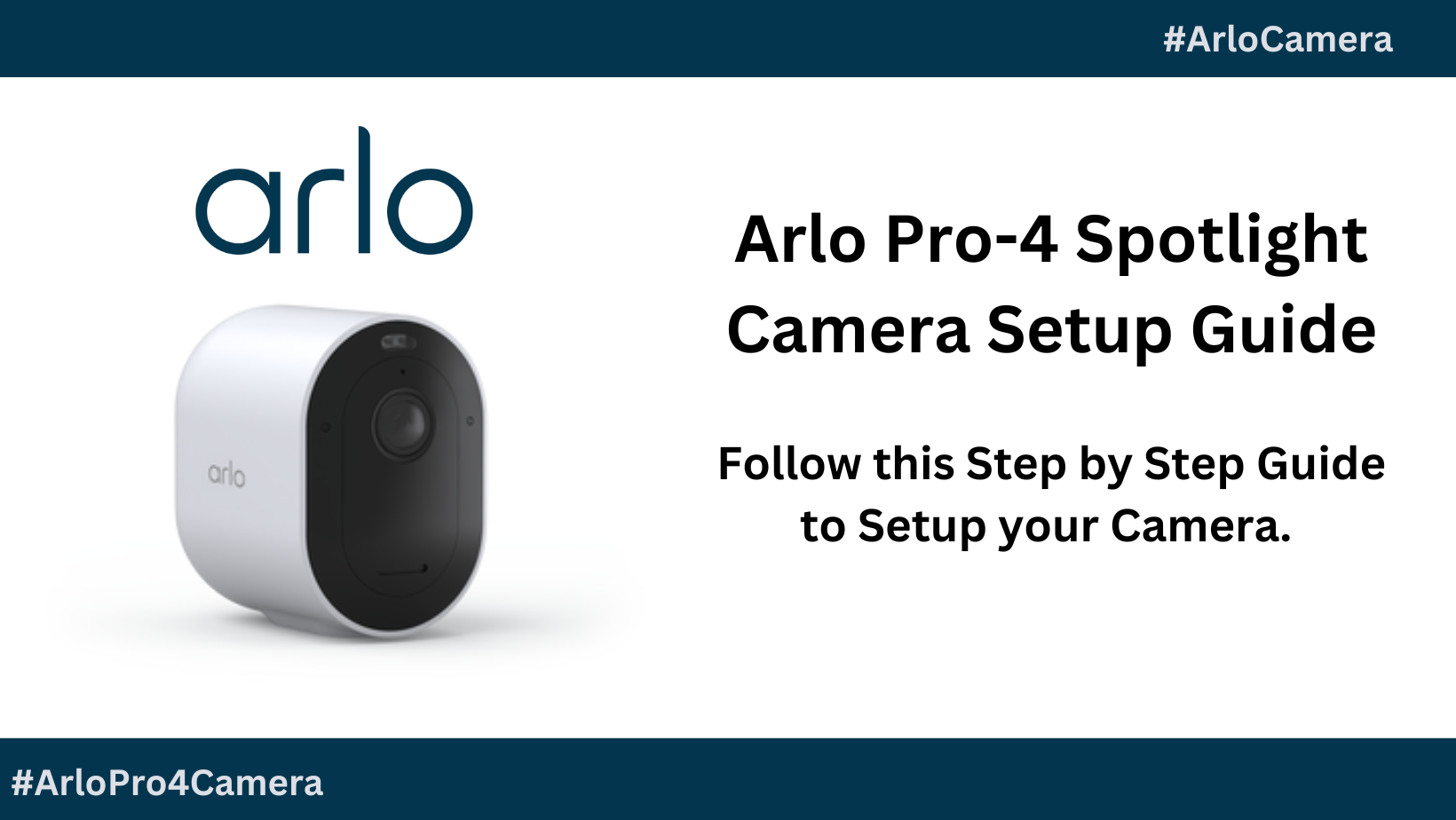
Arlo camera, Setting Up Arlo Pro 4 Spotlight Camera

The Arlo Pro 4 Spotlight Camera is a cutting-edge security solution that combines advanced technology with user-friendly features. Whether you’re looking to monitor your home or business, the Arlo Pro 4 offers high-definition video recording, customizable motion detection, and integrated spotlights for enhanced security. In this article, we’ll guide you through the simple and efficient setup process to get your Arlo Pro 4 Spotlight Camera up and running.

Step 1: Unboxing and Components:

When you first open the Arlo Pro 4 package, you’ll find the essential components neatly organized. These typically include the camera, rechargeable battery, magnetic charging cable, wall mount, and mounting screws. Before proceeding, make sure you have all the necessary components.

Step 2: Charging the Battery:

Before setting up your Arlo Pro 4, it’s crucial to charge the included rechargeable battery fully. Connect the magnetic charging cable to the camera’s charging port and a power source. Once the battery is fully charged, you’re ready to install it in the camera.

Step 3: Mounting the Camera:

Choose an optimal location for your Arlo Pro 4 Spotlight Camera, ensuring a clear view of the area you want to monitor. The camera can be mounted on walls, ceilings, or placed on flat surfaces, thanks to its versatile design. Use the provided wall mount and screws to secure the camera in your desired location.

Step 4: Syncing with the Arlo App:

Download and install the Arlo app on your smartphone or tablet. Follow the on-screen instructions to create an Arlo account or log in if you already have one. Once logged in, select the “Add New Device” option and follow the prompts to sync your Arlo Pro 4 with the app. This typically involves scanning a QR code on the camera.

Step 5: Configuring Camera Settings:

After successfully syncing the camera with the Arlo app, you can customize various settings to suit your preferences. Adjust motion sensitivity, define activity zones, and set up alerts to receive notifications when motion is detected. You can also enable or disable the integrated spotlight and fine-tune other camera features.

Step 6: Testing and Troubleshooting:

Before considering your Arlo Pro 4 setup complete, conduct a test to ensure that the camera is capturing clear footage and that motion detection is functioning correctly. If you encounter any issues, refer to the user manual or the Arlo support website for troubleshooting guidance.

Setting up your Arlo Pro 4 Spotlight Camera is a straightforward process that enhances the security of your home or business. With features like high-definition video recording, customizable motion detection, and integrated spotlights, the Arlo Pro 4 provides peace of mind and reliable surveillance. Take the time to familiarize yourself with the camera settings and regularly update firmware to ensure optimal performance and security for your property.

0

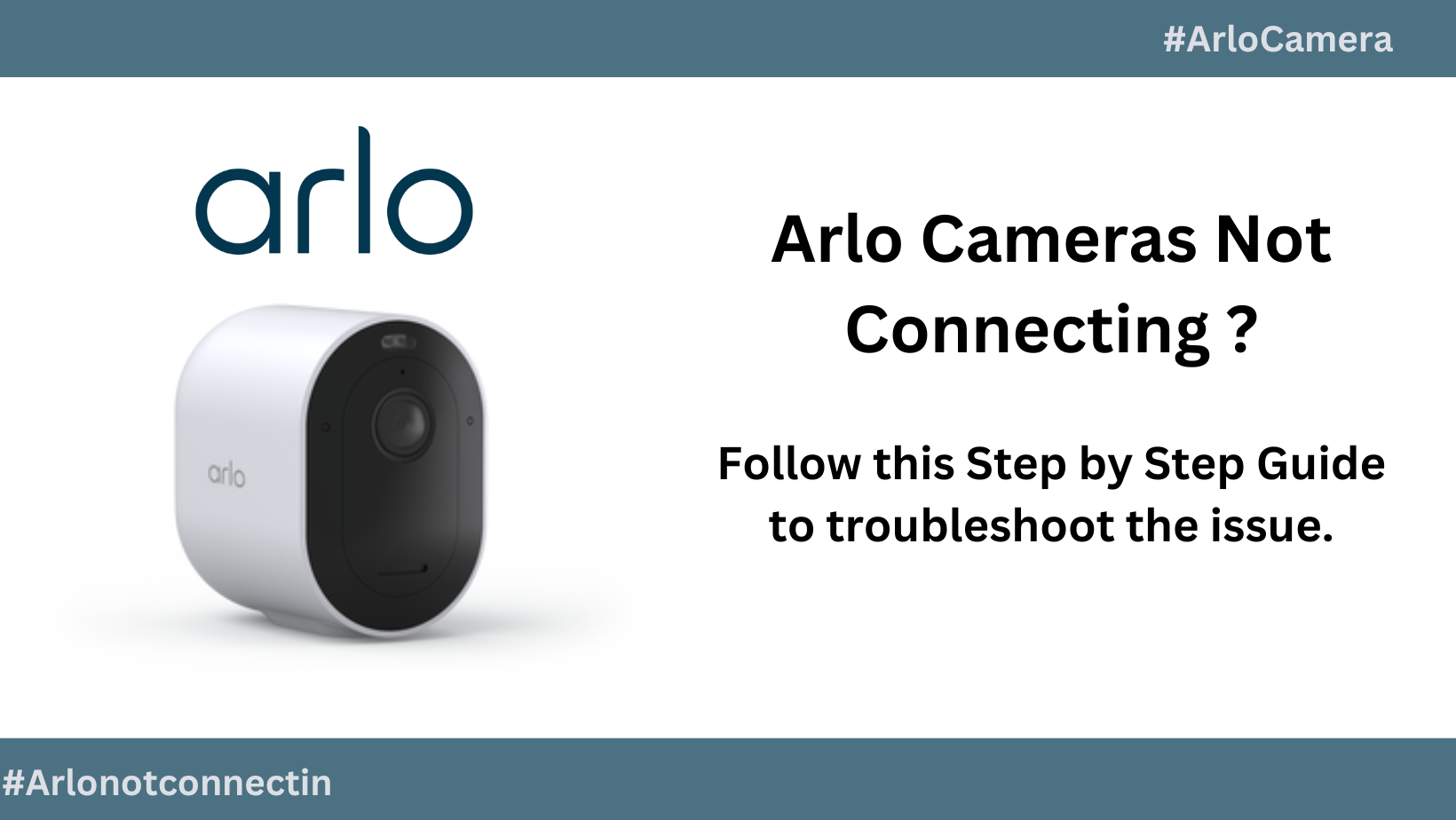
Troubleshooting Arlo Camera Offline Issues

Arlo cameras are renowned for their cutting-edge technology and reliability in providing home security solutions. However, like any electronic device, Arlo cameras may encounter connectivity issues from time to time. If you find your Arlo camera not connecting, there are several troubleshooting steps you can take to resolve the issue and ensure the seamless operation of your home security system.

Check Internet Connection:
The first step in addressing connectivity issues is to ensure that your camera has a stable and strong internet connection. Check if your Wi-Fi network is working properly and if other devices can connect to it. If the internet connection is unstable, it may cause your Arlo camera to have trouble connecting.

Verify Camera Power:
Ensure that your Arlo camera has a stable power source. Check the battery levels or the power connection to make sure the camera is getting adequate power. Low battery levels or a loose power connection can lead to connectivity problems.

Camera and Base Station Proximity:
The distance between your Arlo camera and the base station can impact connectivity. Ensure that the camera is within the recommended range of the base station. If the camera is too far away, it may struggle to establish a reliable connection.

Check Camera Sync Status:
Use the Arlo app to check the sync status of your camera. If the camera is not syncing with the base station, you may need to manually sync them. Follow the instructions provided in the Arlo app to initiate the sync process.

Firmware Updates:
Outdated firmware can lead to connectivity issues. Make sure that both your Arlo camera and base station have the latest firmware updates installed. Check the Arlo app for any available updates and install them to ensure optimal performance.

Reboot Camera and Base Station:
Sometimes, a simple reboot can resolve connectivity issues. Power cycle both the camera and the base station by turning them off, waiting for a few seconds, and then turning them back on. This can refresh the connection and resolve any temporary glitches.

Check for Interference:
Wireless interference from other devices or networks in the vicinity can impact the connectivity of your Arlo camera. Make sure that there are no electronic devices causing interference and consider changing the Wi-Fi channel on your router to minimize potential conflicts.

Contact Arlo Support:
If you’ve tried all the above steps and your Arlo camera still won’t connect, it’s advisable to contact Arlo customer support for further assistance. They can provide specific guidance based on your camera model and help troubleshoot more complex issues.

A non-connecting Arlo camera can be frustrating, but with systematic troubleshooting, you can often identify and resolve the underlying issues. By checking internet connectivity, power sources, device proximity, firmware updates, and other potential factors, you can ensure that your Arlo camera operates smoothly and continues to provide reliable home security. If all else fails, don’t hesitate to reach out to Arlo’s customer support for personalized assistance.

0

How do you Change Your Name on JetBlue Flight Booking?

If you find yourself in a situation where you need to change or correct your name on a JetBlue flight booking, fear not! JetBlue offers a straightforward process to ensure your travel plans remain hassle-free and your details are accurate. In this article, we will guide you through the steps, including JetBlue’s name change policy and online methods for making these adjustments.

0